
The URL Inspection Tool in Google Search Console (GSC) is one of the most valuable assets in any SEO toolkit. It allows you to take a deep look into how Google views a specific page on your website — from crawling and indexing to mobile usability and structured data. While Google provides high-level reports for overall website performance and coverage, the URL Inspection Tool is like an X-ray machine: it reveals exactly what’s happening with one specific URL. Whether you’re troubleshooting indexing problems, confirming changes, or diagnosing rendering issues, this tool gives you the answers.
 |
| Image Source: https://cdn.sanity.io/ |
Let’s walk through its capabilities, one by one, and explain how to interpret the results — using clear examples.
What Is the URL Inspection Tool?
At its core, the URL Inspection Tool is designed to help you understand how Googlebot interacts with a particular URL on your site. When you enter a page (for example, https://example.com/blog/google-seo-tips/), GSC returns a comprehensive technical report: Is the page indexed? When was it last crawled? Is it mobile-friendly? Does it use structured data correctly? All these questions — and more — are answered instantly.
Let’s say you just published a blog post, but it’s not showing up in search results. You can paste that URL into this tool to determine whether Google knows about the page and, if not, why. You might discover that the page was crawled but not indexed, is blocked by robots.txt, or contains a noindex tag — all of which would prevent it from appearing in search.
Real-Time Status: Is Your Page in Google?
The first thing GSC tells you is whether the page is indexed or not. If it is, the tool will say, “URL is on Google.” If not, you might see messages like:
-
“URL is not on Google: Indexing requested but not yet indexed”
-
“URL is not on Google: Page with redirect”
-
“URL is not on Google: Blocked by robots.txt”
For example, imagine you run an e-commerce site and recently launched a new product page at https://example.com/products/blue-leather-sofa/. After two weeks, it’s still not appearing in Google Search. When you inspect the URL, the tool says: “Crawled – currently not indexed.” This means Google has seen the page but decided not to index it — possibly because the content is thin, the page isn’t linked well internally, or it resembles other pages on your site. This insight allows you to improve the content, add internal links, and request indexing again.
Crawl Details: What Did Googlebot See?
The tool also shows when the page was last crawled, which crawler was used (e.g., Googlebot smartphone), and whether the crawl was successful. This is crucial because if the crawl fails, the page won't be evaluated for indexing.
Let’s say your page at https://example.com/services/local-seo/ shows a crawl failure with a 500 error. That means Google tried to access it but the server returned an error — perhaps due to a hosting issue. Once fixed, you can run a Live Test and re-submit the page for indexing.
Canonicalization: Is This the "Preferred" Version?
The URL Inspection Tool also reports on canonicalization. Canonical tags help prevent duplicate content issues by telling Google which version of a page you want indexed. For example, you may have:
-
https://example.com/shoes/red-nike-air/ -
https://example.com/shoes/red-nike-air?ref=homepage
If both URLs lead to the same product, you might declare the first one as canonical using a <link rel="canonical"> tag. But GSC might report that “Google-selected canonical” is different from the “user-declared canonical.” This means Google believes another version is more appropriate to index, likely due to stronger signals (e.g., better links, faster performance, etc.). This tool is the only place where you can directly compare these two values.
Mobile Usability and Structured Data Enhancements
Mobile usability is a major ranking factor. If your page isn’t mobile-friendly, GSC will report issues like “Text too small to read” or “Clickable elements too close together.” Let’s say your page https://example.com/about-us/ was redesigned and your mobile traffic suddenly dropped. Running an inspection might reveal mobile usability issues that Google flagged — giving you a clear starting point to fix layout or font problems.
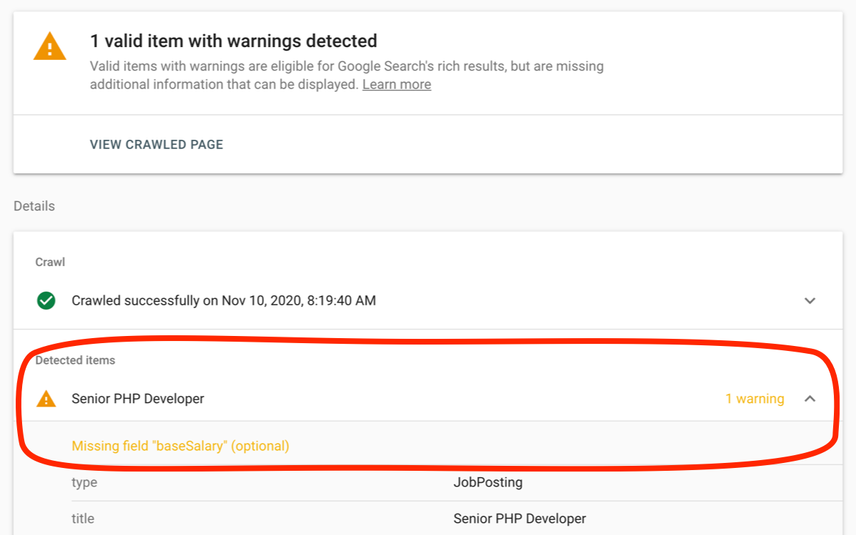
Structured data is another vital SEO element, especially for rich results. If your page contains FAQ schema, review markup, or other JSON-LD/Schema.org data, the URL Inspection Tool shows whether Google detected it, and whether it’s valid. For instance, on a page like https://example.com/products/air-purifier-review/, you might have review schema. The tool will tell you whether it’s error-free and eligible for star ratings in search results — or if it has problems like missing fields or syntax errors.
Live Test and Request Indexing
One of the most powerful features of this tool is the Live Test button. Clicking this fetches the page in real time (not based on Google's cached data) and shows you how Google sees it right now. This is especially useful when you've just made changes and want to confirm whether Googlebot can now access and render the page properly.
After the live test, if everything looks good, you can use the “Request Indexing” button. This tells Google to crawl and re-evaluate the page — typically within a few hours or days. It’s a great way to speed up indexing for new content, corrected errors, or major SEO updates.
When and Why to Use the URL Inspection Tool
Here are some examples of when you’d want to use this tool:
-
New page not indexed: Use the tool to diagnose and request indexing.
-
Old content updated: Confirm Google sees the updated version.
-
Duplicate pages: Check whether the canonical URL is correctly recognized.
-
Rich snippets missing: Validate structured data for errors or enhancements.
-
Mobile issues: Identify and fix mobile usability problems.
-
Redirects: Confirm that redirects are functioning and recognized by Google.
Final Thoughts
The URL Inspection Tool in Google Search Console is more than just a diagnostic tool — it’s your direct line to understanding how Google views each page on your site. Whether you're launching a new blog post, fixing a technical SEO problem, or optimizing content for better rankings, this tool gives you the real-time feedback you need to act confidently.
Instead of guessing why your content isn’t appearing in search results, use the URL Inspection Tool to investigate the facts. With detailed data on crawling, indexing, rendering, mobile usability, and structured data, it empowers you to maintain a healthy and high-performing website — one URL at a time.



 Posts
Posts


No comments:
Post a Comment